

How to Take a Screenshot on Windows 11: All Keyboard Shortcuts Explained
Written By Dilshad AhmadPublished: 11 October 2026 • 11:41 AM IST
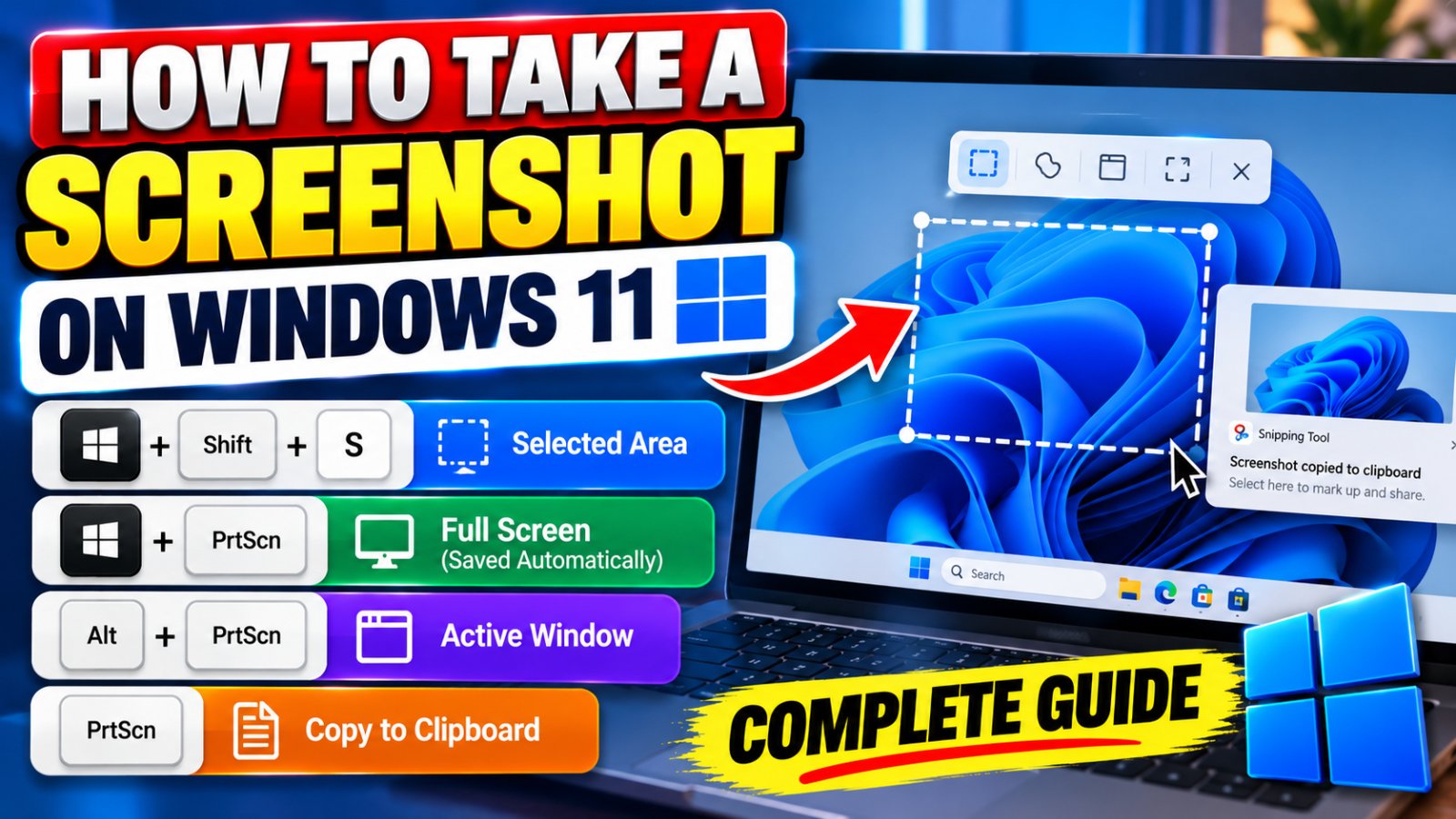
If you want to take a screenshot on Windows 11, the quickest method is to press Windows + Shift + S. This opens the screen-capture overlay, allowing you to select the exact area you want to capture. You can also use Windows + PrtScn to capture the entire screen and save the image automatically, or use the built-in Snipping Tool to capture, edit, and save screenshots.
This guide explains the different ways to take a screenshot on a Windows 11 PC or laptop, the keyboard shortcuts you should know, where your screenshots are saved, and what to do if the Print Screen key is not working.
Quick Answer: Windows 11 Screenshot Shortcuts
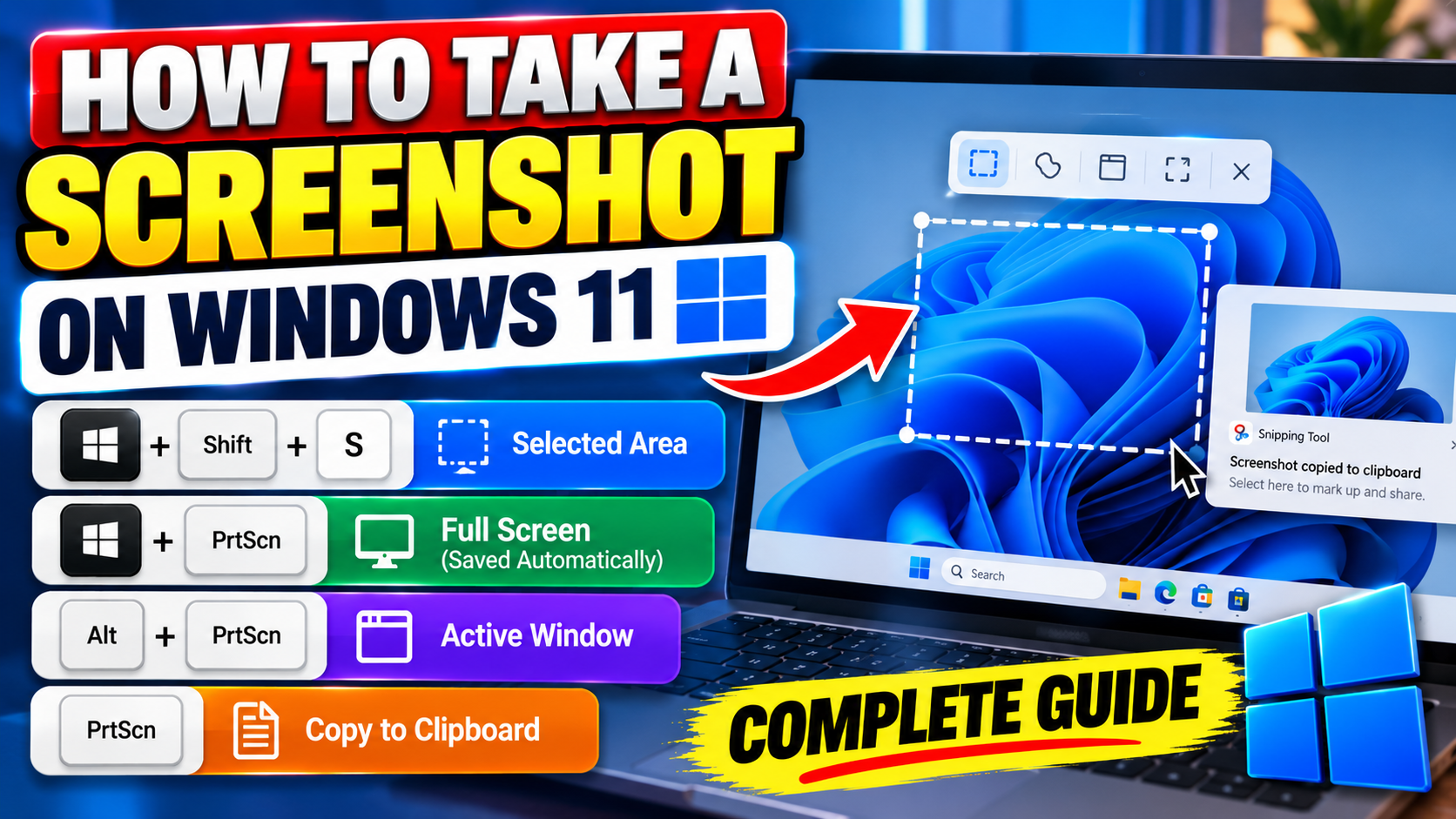
Capture a selected area: Windows + Shift + S
Capture and save the entire screen: Windows + PrtScn
Capture the active window: Alt + PrtScn
Capture the entire screen to the clipboard: PrtScn
Open the screenshot tool: Search for Snipping Tool in the Start menu.
1. How to Take a Screenshot on Windows 11 Using Windows + Shift + S
The Windows + Shift + S keyboard shortcut is one of the most useful ways to capture a screenshot on Windows 11. It lets you select a specific part of your screen instead of capturing everything.
Steps to capture part of your screen
- Open the webpage, document, application, or window you want to capture.
- Press Windows + Shift + S on your keyboard.
- Your screen will dim, and the screenshot toolbar will appear.
- Select the capture mode you want, such as rectangular, freeform, window, or full-screen snip, depending on the available toolbar options.
- If you select a rectangular or freeform snip, use your mouse to select the area you want to capture.
- After the capture, the image is copied to your clipboard. A notification may appear that you can select to open the screenshot in Snipping Tool.
- Edit the image if needed, then select the Save option to store it as a file.
Good to know: Taking a screenshot with Windows + Shift + S does not necessarily save an image file automatically. Open the capture notification and save the image, or paste the clipboard image into an application that supports images.
This method is especially useful when you want to capture a specific paragraph, a section of a website, an error message, or one part of a document without including the rest of your desktop.
2. How to Take a Screenshot on Windows 11 and Save It Automatically
If you want to capture the entire screen and save the screenshot directly as an image file, use the Windows + PrtScn keyboard shortcut.
Follow these steps
- Make sure the screen displays the content you want to capture.
- Press Windows + PrtScn together.
- Your screen may briefly dim to indicate that the screenshot has been taken.
- Open File Explorer.
- Navigate to Pictures > Screenshots.
- Look for the newly created screenshot image.
Windows normally saves these screenshots in the Screenshots subfolder inside Pictures. If you use OneDrive or have changed your folder settings, the actual location may differ.
Some laptops require you to hold the Fn key as well. If the regular shortcut does not work, try Fn + Windows + PrtScn, if supported by your keyboard.
3. How to Screenshot Only the Active Window
If you only want to capture the application you are currently using, such as a browser window, File Explorer, or a settings dialog, you can use Alt + PrtScn.
Steps to capture one window
- Click the window you want to capture so it becomes active.
- Press Alt + PrtScn.
- The screenshot is copied to the clipboard.
- Open Paint, Word, an image editor, or another application that accepts images.
- Press Ctrl + V to paste the screenshot.
- If you are using Paint, choose Save or Save As to save the image file.
This option is helpful when you do not want to include the taskbar, desktop icons, or other open windows in your screenshot. Depending on the application and window state, the captured result may differ from what you see on the full desktop.
4. How to Take a Full-Screen Screenshot Using the PrtScn Key
The PrtScn key, which may also be labeled Print Screen, PrtSc, or PrtScn, is another way to capture your screen.
On Windows 11, pressing PrtScn may open the screen-snipping overlay if that behavior is enabled in your settings. On other configurations, it copies a screenshot of the entire screen to the clipboard.
How to use the screenshot
- Press the PrtScn key.
- If the snipping overlay opens, select the capture mode and area you need.
- If the screenshot is copied to the clipboard, open Paint or another compatible application.
- Press Ctrl + V to paste it.
- Save the image if you want to keep it as a file.
If PrtScn opens the snipping interface and you prefer the traditional clipboard behavior, you can review the Print Screen setting under Windows Settings. Search Settings for the Print Screen option or look under Accessibility and Keyboard. The exact label may vary with Windows updates.
5. How to Use the Snipping Tool in Windows 11
The Snipping Tool is a built-in Windows application for taking screenshots. It allows you to select a capture mode, make changes to an image, and save or share the result. It is a convenient choice if you take screenshots regularly.
Open the Snipping Tool
- Open the Start menu.
- Type Snipping Tool in the search box.
- Select the Snipping Tool application from the results.
- Choose the image-capture option and select the mode you need.
- Select New if the application asks you to begin a capture.
- Capture the screen area, then edit or save the image.
Screenshot modes in Snipping Tool
| Capture Mode | What It Does |
|---|---|
| Rectangular Snip | Lets you drag a rectangle around the part of the screen you want to capture. |
| Freeform Snip | Lets you draw a custom shape around the content you want. |
| Window Snip | Captures a selected application window. |
| Full-Screen Snip | Captures the entire screen. |
Depending on your Windows version and Snipping Tool update, you may also see screen-recording options. These are different from still screenshots and are used to capture video clips of a selected area.
6. Windows 11 Screenshot Keyboard Shortcuts at a Glance
The following table summarizes the most useful screenshot shortcuts. The result of certain keys can depend on your keyboard, laptop manufacturer, and Windows settings.
| Keyboard Shortcut | Function |
|---|---|
| Windows + Shift + S | Opens the screenshot selection overlay. |
| Windows + PrtScn | Captures the full screen and saves it as an image file. |
| Alt + PrtScn | Copies the active window to the clipboard. |
| PrtScn | Captures the screen to the clipboard or opens screen snipping, depending on settings. |
| Ctrl + V | Pastes a screenshot that is currently on the clipboard. |
| Ctrl + S | Saves the image when supported by the application you are using. |
7. Where Are Screenshots Saved in Windows 11?
The location of your screenshot depends on the method you use to capture it.
| Screenshot Method | Where to Find It |
|---|---|
| Windows + PrtScn | Usually Pictures > Screenshots. |
| Windows + Shift + S | Copied to the clipboard; open the capture notification to edit and save it. |
| Alt + PrtScn | Copied to the clipboard until you paste it into an application. |
| Snipping Tool | You choose where to save the image when you use Save or Save As. |
How to find a missing screenshot
- Open File Explorer using Windows + E.
- Select Pictures from the navigation pane.
- Open the Screenshots folder, if it exists.
- Check the Desktop and Downloads folders if you saved the file manually.
- Use the File Explorer search box to search for image files or recently created files.
- If you used Windows + Shift + S, check whether the capture notification is still available or paste the clipboard image into Paint.
Remember that the clipboard is temporary storage. If you need to keep a screenshot, save it as an image file rather than relying on it remaining in the clipboard.
8. How to Edit, Crop, and Share a Screenshot
Windows 11 includes tools that let you make basic changes to screenshots without installing another application.
- Take a screenshot using Windows + Shift + S or open Snipping Tool from the Start menu.
- Select the screenshot notification if it appears to open the captured image.
- Use the available editing tools, such as the pen, highlighter, or crop option, where supported.
- Choose Save or Save As to store the edited image.
- Use the application's sharing options or attach the saved image to an email or message.
You can also paste a screenshot into Microsoft Paint and use its cropping, resizing, drawing, and saving tools. For screenshots containing personal information, review the image carefully and remove sensitive details before sharing it.
9. Windows 11 Screenshot Not Working? Try These Fixes
If you press the screenshot shortcut and nothing happens, the issue may be related to your keyboard, Windows settings, or the application you are using.
Fix 1: Try Windows + Shift + S
Test this shortcut to see whether the screenshot overlay opens. If it works, use it to capture the area you need and save the resulting image through Snipping Tool.
Fix 2: Check the Fn key on your laptop
Some laptop keyboards combine Print Screen with another function. Try holding Fn while pressing the relevant key combination. The correct shortcut depends on your laptop model and keyboard layout.
Fix 3: Check the Print Screen setting
Open Settings and look under Accessibility > Keyboard. Check whether the Print Screen key is configured to open screen snipping. If the key behaves differently than expected, adjust the setting if available and test it again.
Fix 4: Open Snipping Tool manually
Open Start, search for Snipping Tool, and launch it. If the application opens, try creating a new screenshot directly from the tool. This can help identify whether the issue is with the keyboard shortcut rather than the capture application.
Fix 5: Restart the application or PC
Save your work and restart the application you are trying to capture. If screenshots still do not work, restart your computer and test the shortcuts again.
Fix 6: Update Windows and Snipping Tool
Check Windows Update and the Microsoft Store for available updates. An update may resolve a software issue affecting the screenshot feature. The exact update options depend on your Windows configuration.
Important: If screenshots work but you cannot find the saved files, first check the Pictures > Screenshots folder and any cloud-backed Pictures folder. A screenshot copied to the clipboard may not have been saved as a file yet.
10. Frequently Asked Questions
How do I take a screenshot on Windows 11 quickly?
Press Windows + Shift + S to select an area of your screen. If you want a full-screen screenshot saved automatically, press Windows + PrtScn.
How do I take a screenshot on a Windows 11 laptop?
You can use Windows + Shift + S or Windows + PrtScn. If your laptop keyboard requires the Fn key for Print Screen, try the corresponding Fn combination supported by your device.
How do I screenshot only one window in Windows 11?
Click the window you want to capture and press Alt + PrtScn. The screenshot is copied to the clipboard, so paste it into Paint or another compatible application and save it.
Where are screenshots saved in Windows 11?
Screenshots captured with Windows + PrtScn are normally saved in Pictures > Screenshots. Images captured with Windows + Shift + S or Alt + PrtScn may be copied to the clipboard until you save them separately.
Can I take a screenshot without using the keyboard?
Yes. Open the Start menu, search for Snipping Tool, and launch the application. Select the capture mode and use the on-screen controls to take a screenshot.
Why is my Print Screen key opening Snipping Tool?
Windows 11 can use the Print Screen key to open the screen-snipping interface when that setting is enabled. You can review the option under Settings > Accessibility > Keyboard.
How do I paste a screenshot into an email?
After capturing the screenshot to the clipboard, open your email draft and press Ctrl + V in the message body if your email application supports image pasting. Alternatively, save the screenshot first and attach the image file.
Can I record my screen instead of taking a screenshot?
Yes. Windows 11's Snipping Tool includes screen-recording capabilities on supported versions. You can also use other screen-recording applications if you need additional controls.
Official Microsoft Resources
For the latest instructions and feature details, refer to these official Microsoft support pages:
- Use Snipping Tool to capture screenshots
- Keyboard shortcut for Print Screen
- Keyboard shortcuts in Windows
Final Thoughts
Taking a screenshot on Windows 11 is straightforward once you know which shortcut to use. For most everyday tasks, Windows + Shift + S is the best choice because it lets you select exactly what you want to capture. Use Windows + PrtScn when you want to save a full-screen image automatically, or choose the Snipping Tool when you need to edit and manage your captures.
Keep these shortcuts handy, and you will be able to capture error messages, save useful information, share instructions, and document what is happening on your Windows 11 computer in just a few seconds.
Disclaimer: Windows features, keyboard behavior, and Snipping Tool options may vary depending on your device, keyboard layout, Windows version, and installed updates. Refer to official Microsoft support documentation for device-specific instructions.